[How-To] Realme Forgot Password Stuck in Fastboot Mode:1 - Force Recovery Wipe via PC
30-Second Quick Diagnosis (TL;DR)
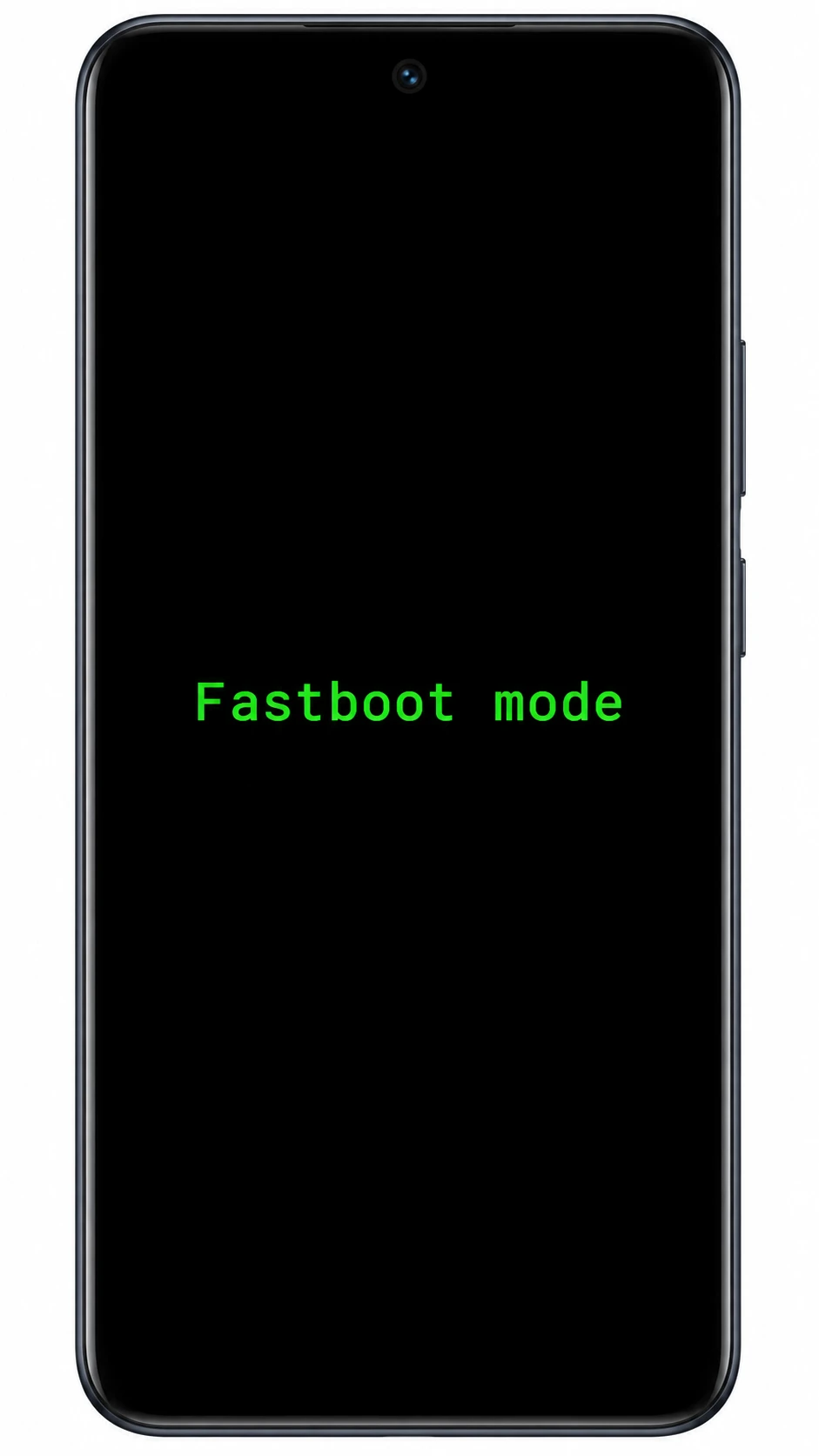
When you forget your Realme lock screen password and attempt a hard reset with Power + Volume Down, modern Realme devices often trap you in a black screen showing only fastboot mode:1 with no options. The only working solution: Connect to a Windows PC via USB ➔ Manually install the Android Bootloader Interface driver ➔ Send the fastboot reboot recovery command via Platform-Tools to jump directly into the white Recovery screen for Format Data.
🧰 Required Equipment & Downloads
Download and prepare these official Google utility archives before proceeding:
1 Install Fastboot USB Driver on Windows ("Have Disk" Method)
Windows 11 rarely installs Fastboot drivers automatically. Without this step, your PC will not detect the phone at all. Follow this manual installation:
- Connect your Realme phone (showing
fastboot mode:1) to your PC using a USB data cable. - Press shortcut Win + X on your keyboard and select Device Manager.
- Locate the device named Android with a yellow exclamation mark ⚠️ (under Other devices).
- Right-click on Android ➔ Click Update driver ➔ Select Browse my computer for drivers.
- Click Let me pick from a list of available drivers on my computer.
- Select Show All Devices and click Next.
- Click Have Disk... ➔ Click Browse... and navigate to the extracted
usb_driverfolder, then chooseandroid_winusb.inf. - From the model list, select Android Bootloader Interface and click Next.
- If a red warning dialog appears ("Update Driver Warning"), click Yes to confirm.
2 Open Command Prompt (CMD) in the Correct Directory
A frequent error is 'fastboot' is not recognized as an internal or external command. This happens because CMD is opened in the default user directory instead of the tools folder:
- Extract
platform-tools_rXX-windows.zipand double-click to enter the platform-tools folder (verify thatfastboot.exeandadb.exeare visible). - Click on the Address Bar at the very top of Windows File Explorer to highlight the path text.
- Type
cmddirectly into the Address Bar and press Enter. - A black Command Prompt window will launch, targeted directly at this directory.
3 Verify USB Connection Between Phone & PC
In the Command Prompt window, type this command or click the copy button below:
fastboot devices If your driver is correctly configured, your phone's unique hardware serial will appear:
(Optional) If you want to check the exact device model code of your Realme phone, run:
fastboot getvar product 4 The Magic Command! Force Reboot into Recovery Mode
This is the essential command that forces the device out of the Fastboot loop directly into the format menu:
fastboot reboot recovery Immediately after pressing Enter, your Realme screen will turn off, restart, and bypass Fastboot into the official white Recovery Mode menu!
5 Perform Wipe Data / Format Data to Remove Passcode
Once you are in Recovery Mode, follow these touch gestures on the phone screen:
- On the language selection screen, tap English.
- Tap the Wipe data option (some models display Format data).
- A 4-digit code will appear on the display (e.g., Please enter verification code: XXXX). Type this number using the on-screen keypad.
- Tap the red Format button and wait 1–2 minutes for the system wipe to complete.
- Once you see Wipe data successfully, tap Reboot or OK.
- Your Realme will reboot as fresh as out-of-the-box. The forgotten screen lock password is completely gone! 🎉
Frequently Asked Questions (FAQ)
Why does my Realme phone enter Fastboot mode:1 instead of Recovery?
On modern Realme smartphones (especially C-series, Narzo, and Unisoc chipset devices), the bootloader key combination for Power + Volume Down is assigned to Fastboot mode rather than the Recovery partition for security and carrier regulations. The only way to force it into Recovery is through the PC terminal command fastboot reboot recovery.
Why is the command 'fastboot devices' showing a blank output?
This is caused by either: 1) Windows missing the Android Bootloader Interface driver (follow Step 1 to install it via Have Disk), or 2) You are using a charging-only USB cable that lacks internal data lines. Try a different USB port on your PC or another data-capable cable.
Will this process erase all my photos and personal data?
Yes. A factory wipe removes all internal storage data, including photos, downloaded files, contacts, and installed apps. However, any data previously backed up to your Google Drive, Google Photos, or Realme Cloud will be restored once you log back into your Google account.